PyKX: Top Features for Data Mastery
Read time:
5 minutes
Kevin O'Hare
PyKX (Developed by KX) is a Python/Kdb+ interface that allows the high performance of Kdb+ to be combined with the versatility of Python. There are many practical features of PyKX, and in this blog we highlight some key features that would be particularly useful to data analysts and Kdb+ developers. We’ll work through the basics of datatypes, converting between q and python, along with an example of a streaming tickerplant and a push to a UI using Streamlit.
- Baseline imports:
The following imports are needed for the examples of this blog.
pip install pykx

import pykx as kx
import pandas as pd
import numpy as np2. Running q in Python:
Python developers may be attracted to the high performance of Kdb+ to process, store and analyse large volumes of time-stamped data, but may be dissuaded to learn an entirely new database technology and programming language in order to do so. Fortunately PyKX allows for q/kdb+ code to be ran from Python without an external connection to a live q session. This is because PyKX has an in-built Kdb+ memory space. In the simple example below the output is returned as a PyKX object.
Input:
kx.q('1+2')
Output:
pykx.LongAtom(pykx.q('3'))Which we can instead convert to a Python element as follows:
Input:
kx.LongAtom(kx.q('1+2')).py()
Output:
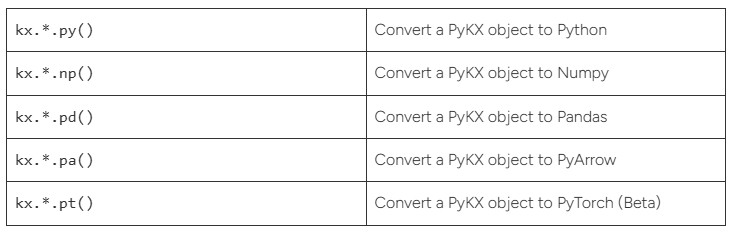
3We can also use the following alternative conversions, where * is the desired datatype and atom/vector, in the above case LongAtom.
Python objects can also be converted to PyKX objects (C representations of q/Kdb+ objects within a memory space managed by q) as seen in these examples using kx.toq(*):
Input:
pyatom = 2
kx.toq(pyatom)
Output:
pykx.LongAtom(pykx.q('2'))

Input:
pylist = [1, 2, 3]
kx.toq(pylist)
Output:
pykx.LongVector(pykx.q('1 2 3'))

Input:
pydict = {'x': [1, 2, 3], 'y': {'x': 3}}
kx.toq(pydict)
Output:
x | 1 2 3
y | (,`x)!,3Connections to running q processes can be made easily as follows, with HOST and PORT (redacted here) replaced as needed. In this case a table called multifeed is loaded on our running port, containing 5 days of 20M entries each.
Input:
conn = kx.SyncQConnection(HOST,PORT)
conn('select count i by date from multifeed')
Output:
date       |
2024.05.24 | 20085306
2024.05.25 | 20121897
2024.05.26 | 20499580
2024.05.27 | 20092729
2024.05.28 | 20558866Objects can be created in the external q session from Python using conn. In this case a table is defined using kx.q(). We can also query kdb tables from Python using qsql syntax as seen here.
Input:
conn['tab'] = kx.q('([]100?`a`b;100?1f;100?1f)')
conn.qsql.select('tab', where = 'x=`a')
Output:
  | x |         x1 |          x2
0 | a |  0.2032099 |   0.7250709
1 | a |  0.5611439 |   0.9452199
2 | a |  0.8685452 |   0.7092423
3 | a | 0.01221208 | 0.002184472
4 | a | 0.7716917 | 0.06670537Queries to kdb tables from Python using PyKX will be by default returned as PyKX objects. As seen here these can be converted to a Pandas dataframe using the *.pd() command.
Other options include:
PyArrow – *.pa()
Polars (via Pandas or Arrow) – pl.from_arrow(*.pa()) or pl.from_pandas(*.pd())
NumPY – *.np()
Input:
tab = conn('10#select from multifeed where date=2024.05.28')
tab.pd()
Output:
  |       date |                          time | market | symbol | qty | price
0 | 2024-05-28 | 2024-05-28 00:00:00.001422921 |      c |    CFG |  78 | 898.82
1 | 2024-05-28 | 2024-05-28 00:00:00.001422921 |      b |    BDE |   7 | 352.28
2 | 2024-05-28 | 2024-05-28 00:00:00.001422921 |      b |    BFG |  51 | 931.12
3 | 2024-05-28 | 2024-05-28 00:00:00.001422921 |      c |    CDE |  17 | 560.66
4 | 2024-05-28 | 2024-05-28 00:00:00.001422921 |      c |    CDE |   1 | 397.56
5 | 2024-05-28 | 2024-05-28 00:00:00.001422921 |      b |    BBC |   1 | 526.93
6 | 2024-05-28 | 2024-05-28 00:00:00.001422921 |      b |    BDE |  50 | 849.64
7 | 2024-05-28 | 2024-05-28 00:00:00.001422921 |      a |    ADE |  30 | 611.68
8 | 2024-05-28 | 2024-05-28 00:00:00.001422921 |      b |    BBC |  94 | 905.93
9 | 2024-05-28 | 2024-05-28 00:00:00.001422921 | c | CBC | 54 | 850.913. Streaming Tickerplant:
Kdb+ real-time streaming is extremely performant and straightforward. Using a tickerplant in Python, you can get the Kdb+ performance alongside the broad analytics and onward connectivity of python. KX provides a useful notebook demo (https://code.kx.com/pykx/3.0/examples/streaming/index.html) of how PyKX can quickly and easily set-up a simple tick framework using in-built functionality i.e., as opposed to manually setting up each component using only Kdb+. This arguably provides a lower level of entry to setting up and experimenting with Kdb+ streaming, particularly useful for developers with more Python experience than Kdb+.
The in-built kx.PyKXReimport() command is used to run Python scripts that will create the different components of a kdb framework. In this case a generate_hdb.py script is ran to create a hdb containing dummy data.
with kx.PyKXReimport():
    db = subprocess.Popen(
        ['python', 'generate_hdb.py',
         '--datapoints', '100000',
         '--days', '5',
         '--name', 'db'],
        stdin=subprocess.PIPE,
        stdout=None,
        stderr=None,
    )

rc = db.wait()
if rc !=0:
    db.stdin.close()
    db.kill()
    raise Exception('Generating HDB failed')
else:
    db.stdin.close()
db.kill()Writing Database Partition 2025.02.09 to table trade
Writing Database Partition 2025.02.09 to table quote
Writing Database Partition 2025.02.10 to table trade
Writing Database Partition 2025.02.10 to table quote
Writing Database Partition 2025.02.11 to table trade
Writing Database Partition 2025.02.11 to table quote
Writing Database Partition 2025.02.12 to table trade
Writing Database Partition 2025.02.12 to table quote
Writing Database Partition 2025.02.13 to table trade
Writing Database Partition 2025.02.13 to table quote
Tables can then be defined using the in-built kx.schema.builder() command. In this example a trade and quote table are defined for a feed to later populate.
trade = kx.schema.builder({
    'time': kx.TimespanAtom  , 'sym': kx.SymbolAtom,
    'exchange': kx.SymbolAtom, 'sz': kx.LongAtom,
    'px': kx.FloatAtom})

quote = kx.schema.builder({
    'time': kx.TimespanAtom  , 'sym': kx.SymbolAtom,
    'exchange': kx.SymbolAtom, 'bid': kx.FloatAtom,
    'ask': kx.FloatAtom      , 'bidsz': kx.LongAtom,
'asksz': kx.LongAtom})With our HDB and table schemas created/defined, we can now initialise a simple tick framework using the kx.tick.BASIC() command seen here. We simply pass whatever tables we wish to use as part of the framework, as well as which unused ports we wish for our TP, RDB and HDB processes to run on. At this point we now have a very simple TP/RDB/HDB framework in operation but the trade/quote tables will be empty as there is currently no feed running for our RDB to subscribe to.
simple = kx.tick.BASIC(
    tables = {'trade': trade, 'quote': quote, 'aggregate': aggregate},
    ports={'tickerplant': 5010, 'rdb': 5013, 'hdb': 5011},
    log_directory = 'log',
    database = 'db'
)
simple.start()Initialising Tickerplant process on port: 5010
Tickerplant initialised successfully on port: 5010
Starting Tickerplant data processing on port: 5010
Tickerplant process successfully started on port: 5010
Initialising HDB process on port: 5011
HDB initialised successfully on port: 5011
Starting HDB process to allow historical query
Successfully loaded database: db
HDB process successfully started
Initialising Real-time processor on port: 5013
Real-time processor initialised successfully on port: 5013
Starting Real-time processing on port: 5013
Real-time processing successfully started on port: 5013
Again we make use of the kx.PyKXReimport(), in this case to initialise a feed defined in a feed.py script. In the demos case a simple 1 data point per second feed is defined.
with kx.PyKXReimport():
    feed = subprocess.Popen(
        ['python3', 'feed.py'],
        stdin=subprocess.PIPE,
        stdout=None,
        stderr=None,
)Starting Feedhandler ...
Publishing 1 datapoint(s) every 1 second(s)
First message(s) sent, data-feed publishing ...Our tables can now subscribe to this feed using a subscriber.py script again initialised using the kx.PyKXReimport() functionality. Our trade and quote tables are now being populated in real-time via the demo feeds. These tables can now be queried directly but best practise is for an additional real-time subscriber to be created for a gateway function to query. This is covered in the KX demo but omitted here for conciseness.
with kx.PyKXReimport():
    subscriber = subprocess.Popen(
        ['python3', 'subscriber.py'],
        stdin=subprocess.PIPE,
        stdout=None,
        stderr=None,
)4. q/Kdb+ interface
In Section 2 we saw how to make Kdb+ queries from Python either within the in-built PyKX kdb memory space, or connecting to an external q process. There are other interesting ways of performing such queries that may be more user-friendly to developers from a non-Kdb background.
What’s referred to as the magic %%q command can be used to connect to a running port and make kdb queries using standard q syntax. Interestingly multi-line commands can be run without the output suppressing ; character, giving multi-line outputs.
Input:
%%q --port 1800
select count i by date from multifeed
select count i from multifeed where date=2024.05.28

Output:
date       | x
-----------| --------
2024.05.24 | 20085306
2024.05.25 | 20121897
2024.05.26 | 20499580
2024.05.27 | 20092729
2024.05.28 | 20558866
x
--------
20558866KX also document an emulated q console (https://code.kx.com/pykx/3.1/api/pykx-execution/console.html) which can be interacted with from Python using the kx.console command.
5. Streamlit integration
Streamlit allows visualisation of data through web applications. KX provide a script (https://code.kx.com/pykx/3.0/user-guide/advanced/streamlit.html) which can be amended as needed, and ran from your Python terminal (streamlit run streamlit.py) to connect to your desired port (in this case my RDB from Section 3), perform your desired query/queries and output visually (tables/graphs) to a webpage using Streamlit.
Since PyKX to Kdb+ table queries return a PyKX object it is important to perform a *.pd() to convert the output to a Pandas dataframe for Streamlit to interact with.
# Set environment variables needed to run Steamlit integration
import os
os.environ['PYKX_BETA_FEATURES'] = 'true'

# This is optional but suggested as without it's usage caching
# is not supported within streamlit
os.environ['PYKX_THREADING'] = 'true'

import streamlit as st
import pykx as kx
import matplotlib.pyplot as plt


def main():
    st.header('PyKX Demonstration')
    connection = st.connection('pykx',
                               type=kx.streamlit.PyKXConnection,
                               port=5013)
    if connection.is_healthy():
        tab = connection.query('10#select from trade')
        tab = tab.pd()
    else:
        try:
            connection.reset()
        except BaseException:
            raise kx.QError('Connection object was not deemed to be healthy')
    fig, x = plt.subplots()
    x.scatter(tab['sz'], tab['px'])

    st.write('Queried kdb+ remote table')
    st.write(tab)

    st.write('Generated plot')
    st.pyplot(fig)


if __name__ == "__main__":
    try:
        main()
    finally:
        kx.shutdown_thread()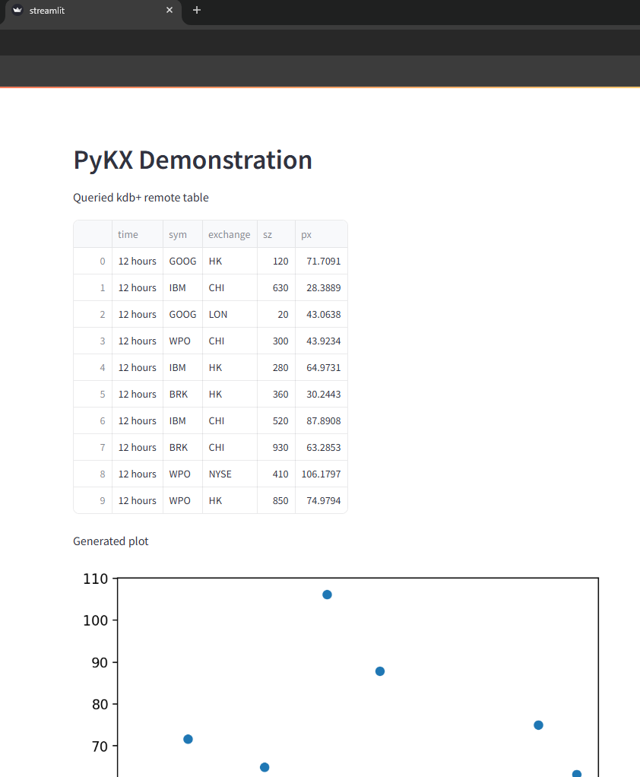
6. Summary
PyKX does a fantastic job of providing Python-first developers a seamless low level of entry to Kdb. Having its own built-in Kdb memory space, and conversion functions for Python and Kdb datatypes, makes it an ideal sandbox for experimenting with and discovering faster and better ways of processing/analysing large amounts of data than exclusively using Python. Having the tickerplant framework (one of the biggest attractions of Kdb) boiled down to a small number of user-friendly scripts and functions is a great way of additionally introducing Python developers to real-time analytics using both Python and Kdb functionality.
With Python being so widely adopted and supported, interoperability between it and Kdb opens the floodgates for Kdb developers to more easily visualise and analyse data and present findings (as seen with the Streamlit integration section).
It’s worth reminding that this documentation is far from an exhaustive list of the capabilities of PyKX, and other topics make great candidates for future blogs E.g., Database creation and management, direct manipulation of HDB tables, multi-threaded execution.
Share this: